
Content
The Content section of a site (Ctrl/⌘+2) is where you write: the pages tree on the left, the Markdown editor in the middle, and the Front matter and Outline of the page on the right.
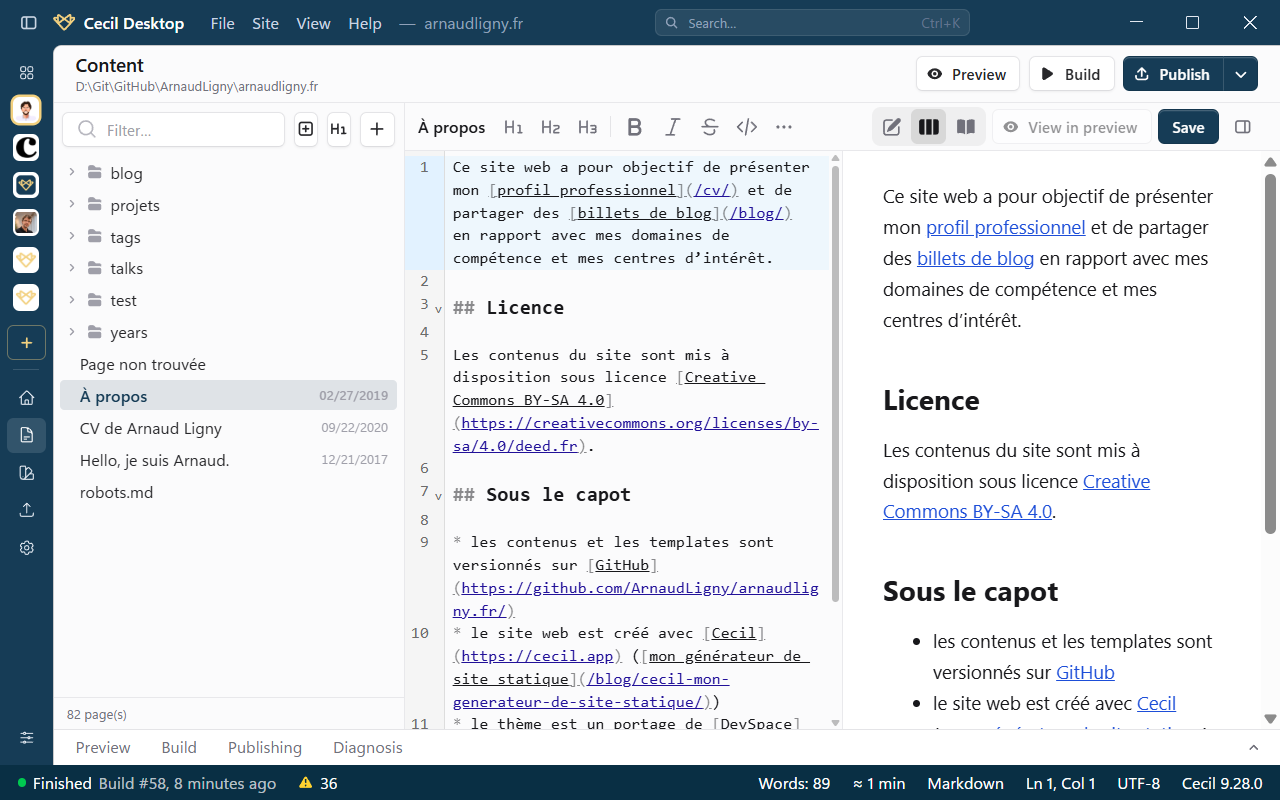
Pages tree
The tree lists the pages of the pages/ folder, folders first. Each page shows its title (or its file name: toggle with the button of the toolbar), and badges:
- an eye-slash icon for a draft (
draft: trueorpublished: false); - the language of a translated page (e.g.
about.fr.md); - the date of the page;
- a red warning icon if its front matter is invalid.
Filter… searches the paths and the titles. The keyboard arrows move in the tree, and open or close the folders.
Right-click a page for its actions:
| Action | Shortcut | Description |
|---|---|---|
| Open | Opens the page in the editor. | |
| View in preview | Opens the page in the browser, if the preview is running. | |
| Open in external editor | Opens the file in your editor (see Preferences). | |
| Show in Explorer / Finder | Shows the file in the file manager. | |
| Rename… | F2 | Renames the page, or moves it: type another folder in its path. |
| Duplicate | Ctrl/⌘+D | Copies the page next to it (name-copie.md), and opens the copy. |
| Move to trash | Delete | Moves the file to the trash of the system, from where you can restore it. |
Create a page
Click + (New page) above the tree, and type the path of the file in pages/, e.g. blog/my-post.md: the name is converted to a slug, and the page is created with cecil new:page, from the model of its section if there is one (models/). Prefix the name with today's date adds YYYY-MM-DD- before it.
Write
The editor highlights the Markdown syntax. Its toolbar formats the text: headings, bold (Ctrl/⌘+B), italic (Ctrl/⌘+I), strikethrough, inline code (Ctrl/⌘+E), link, image, lists, task list, quote, code block, table and horizontal rule. Click a button again to remove its formatting. The buttons that don't fit go into the … menu.
The View switch changes the layout, kept for the next pages:
- Editor: the Markdown alone;
- Side by side: the Markdown and the rendered page, that scrolls along with the editor;
- Rendered: the rendered page alone.
The rendered page is converted like Cecil does (Markdown options of the site, notes, code highlighting) and refreshed while you type, but without the templates of the site: to see the page in its layout, use View in preview (eye icon), once the preview is running.
Focus mode (Ctrl/⌘+Shift+Enter, or the … menu) hides everything but the text; Esc leaves it.
The status bar shows the number of words, the estimated reading time and the position of the cursor.
Save
Save with Save or Ctrl/⌘+S. A dot next to the title shows unsaved changes: Cecil Desktop asks before discarding them when you open another page or leave the screen. There is no autosave.
Only the changed variables of the front matter are rewritten: the rest of it, comments included, is kept.
Front matter
The Front matter tab shows the variables of the page as a form:
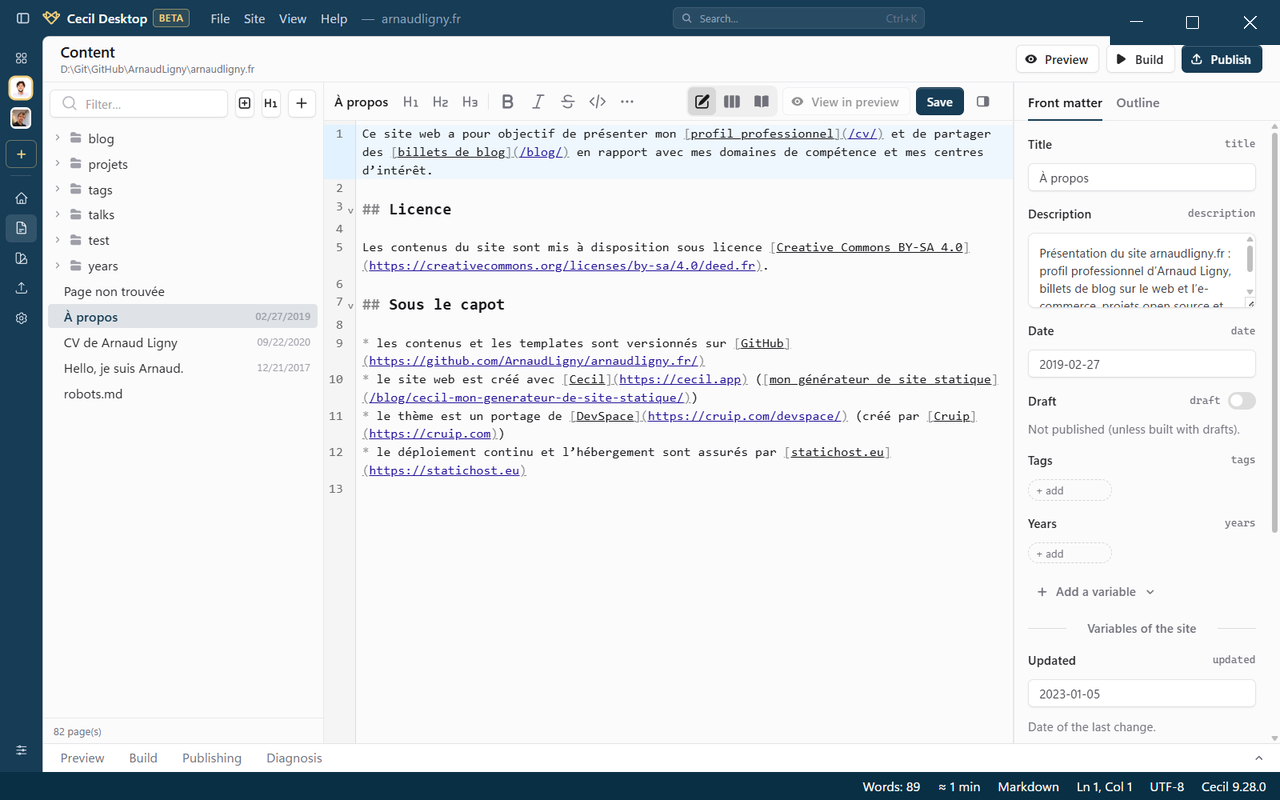
- Title, Description, Date (
YYYY-MM-DD) and Draft are always shown; empty fields are not written to the file; - the taxonomies of the site (e.g. tags) are lists of terms: type a term then
Enteror,to add it,×to remove it; - Add a variable adds another variable of Cecil: published, schedule, excluded from lists, updated, menus, weight, template, path, slug, aliases, redirect, output formats, language, translation reference…;
- Other variables (YAML) holds the other variables, as YAML (e.g.
author: Jane).
The front matter is checked like Cecil does, as you type, with the messages next to the fields. Depending on the pages.validation option of the site (see Configuration), an invalid page can't be saved (error, the default, and strict), or is saved with a warning (warning).
If the front matter is not in YAML, or can't be read, the whole file is edited as text.
Pages schema
Pro If the site defines a schema of its pages (pages.schema in the configuration), its variables are shown as form fields too, with their type (text, list of values, number, switch, date, list…), their default value and a Required badge: common variables under Variables of the site, those of the section under Variables of “section”.
In the free version, these variables stay in Other variables (YAML), and are still checked.
Outline
The Outline tab lists the headings of the page and highlights the current one: click a heading to go to it.
The right pane is hidden or shown with the button at the end of the editor bar. When the window is narrow, it opens over the editor.
Images
To add an image to a page:
- drop it on the editor;
- paste it;
- or click Insert an image in the toolbar: pick an image of the site (from
assets/andstatic/), Import… one or more files, or insert one By its URL.
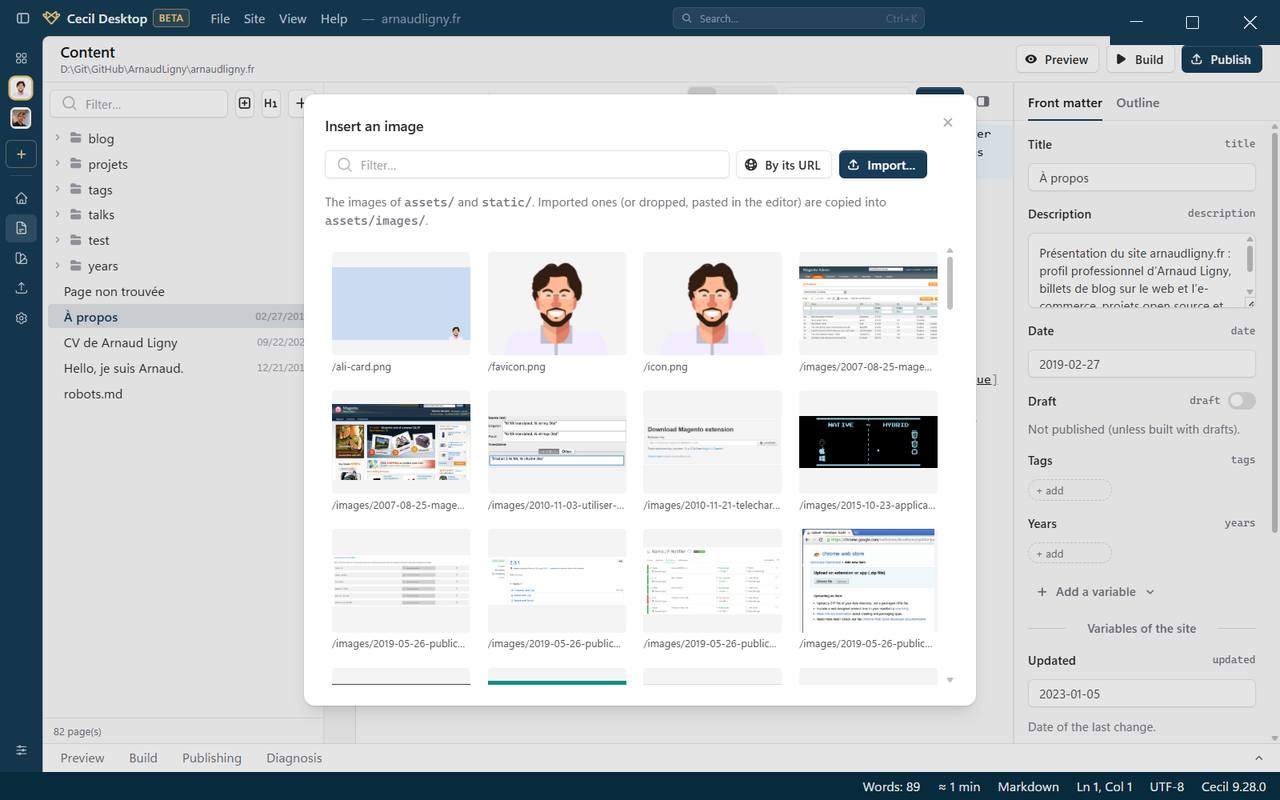
Imported images are copied into the assets/images/ folder of the site, with a slugified name, and inserted as . An image already imported is reused, not copied again.
Accepted formats: AVIF, GIF, JPEG, PNG, SVG and WebP, up to 12 MB.