
Preferences
Preferences (Ctrl/⌘+,, or File › Preferences) open in their own window. There is no save button: changes apply immediately.
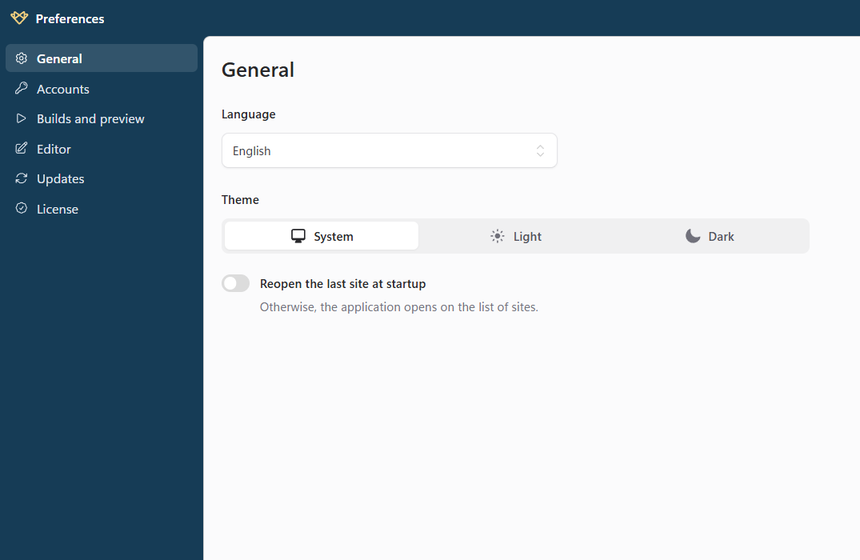
General
| Option | Description |
|---|---|
| Language | The language of the app: the language of the system (the default, English if it is neither English nor French), English or Français. |
| Theme | System (the default), Light or Dark. |
| Reopen the last site at startup | Otherwise, the app opens on the list of sites. |
Accounts
The hosting accounts used to publish your sites: see Publishing.
Builds and preview
| Option | Description |
|---|---|
| Notify when builds finish | A system notification when a build finishes or fails. |
| Open the browser when the preview is ready | For the sites never previewed: then, each site keeps its own preview option. |
| Lines shown by default in the build output | All, steps and issues, warnings and errors, or errors only. |
Editor
| Option | Description |
|---|---|
| Word wrap | Wraps the long lines of the Markdown editor. |
| Text size (px) | From 10 to 24 (13 by default). |
| External editor | The application that opens the pages (Open in external editor): Choose… it, or Reset to use the default application of the system for the file type. |
Updates
Shows the versions of Cecil Desktop, of Cecil and of PHP, embedded in the app, and Check for Updates.
On Windows, Cecil Desktop downloads its updates when it starts. When one is ready, the status bar shows Update … ready: click it to restart and install it, or it will be installed when you quit the app. Each update embeds the latest version of Cecil.
On macOS, automatic updates are not available yet: download the new version from the website, and install it over the previous one.
License
Your license of Cecil Desktop Pro: see Cecil Desktop Pro.