
Getting started
This page guides you from the download to the preview of your first site.
Requirements
- Windows 10 or later (x64 or ARM64)
- macOS 12 or later (Intel or Apple Silicon)
PHP and Cecil are embedded in the app: you don't need to install them. Linux is planned.
Install
Download the installer for your system from the download section of the website, then run it.
Open a site
On the first launch, the Sites screen is empty. To add a site you already have, do one of the following:
- click Open folder (File › Open folder…,
Ctrl/⌘+O) and pick the folder of your Cecil site; - drop the folder of the site on the window.
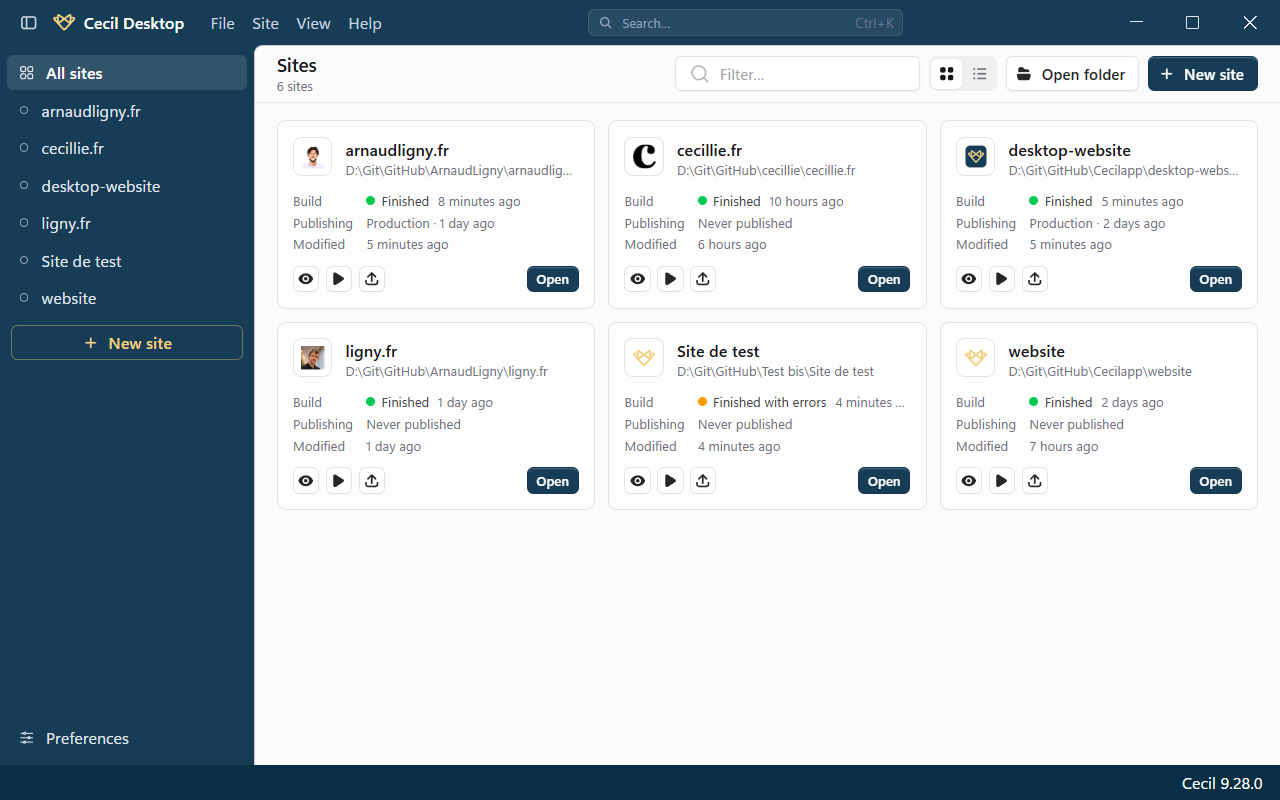
Cecil Desktop works directly on your files: nothing is moved or converted, and your site stays a standard Cecil project that you can still build from the command line.
Create a site
Click New site (File › New site…, Ctrl/⌘+N), then follow the 3 steps of the wizard:
Location: the parent folder and the name of the site folder.
Site: title, baseline, base URL (
/, or the URL where the site will be published), description, author and main language. You can change them later in the configuration.Starting point:
- Empty site: the configuration and a homepage, with the default templates of Cecil;
- Demo: example pages, templates and assets (blog, documentation);
- Theme: a theme of the catalog, installed after the site is created.
You can also add a GitHub Actions workflow that deploys the site to GitHub Pages.
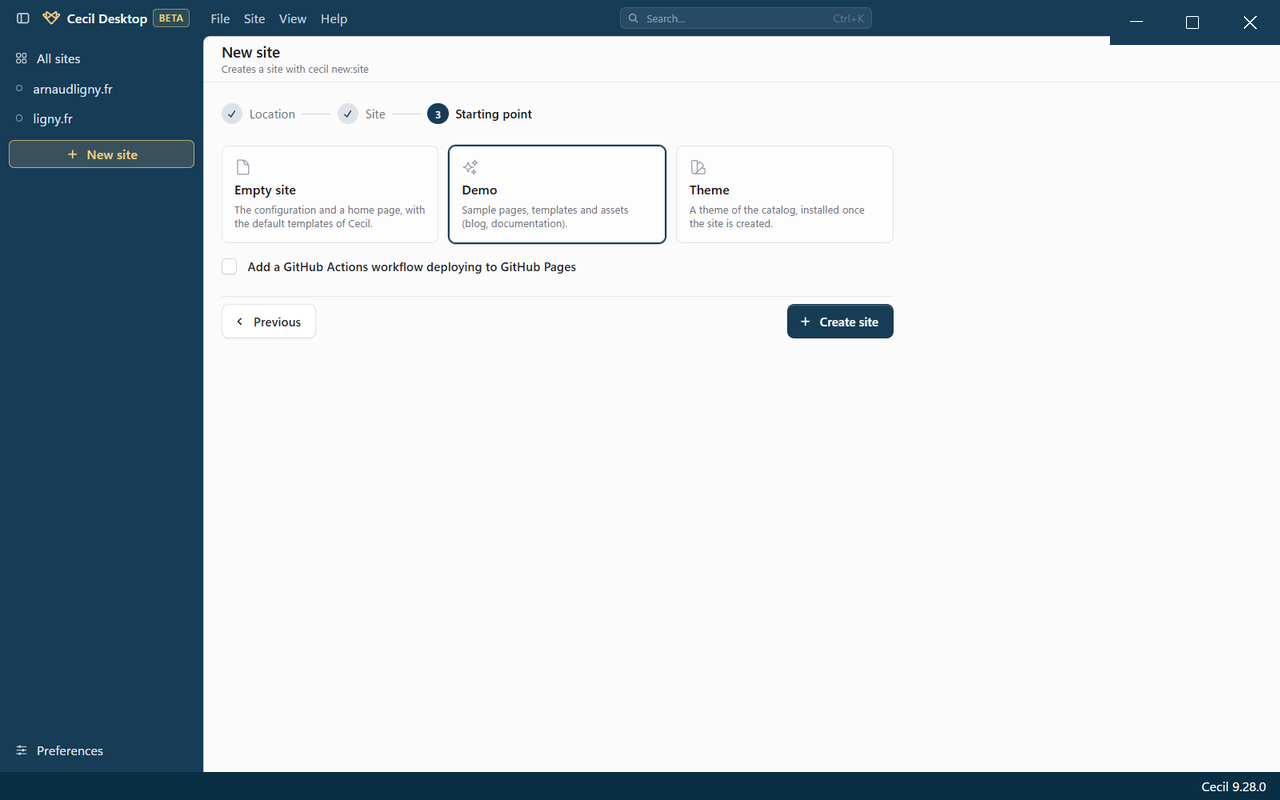
Click Create site: the site opens on its Overview.
Find your way around
The window of a site has 3 main areas:
- the sidebar, on the left, lists your sites and the sections of the open site: Overview, Content, Themes, Publishing and Configuration (
Ctrl/⌘+1toCtrl/⌘+5).Ctrl/⌘+Bfolds it into a rail of icons; - the main area shows the selected section;
- the Output panel, at the bottom (
Ctrl/⌘+J), shows the logs of the preview, of the builds, of the publications and of the diagnosis.
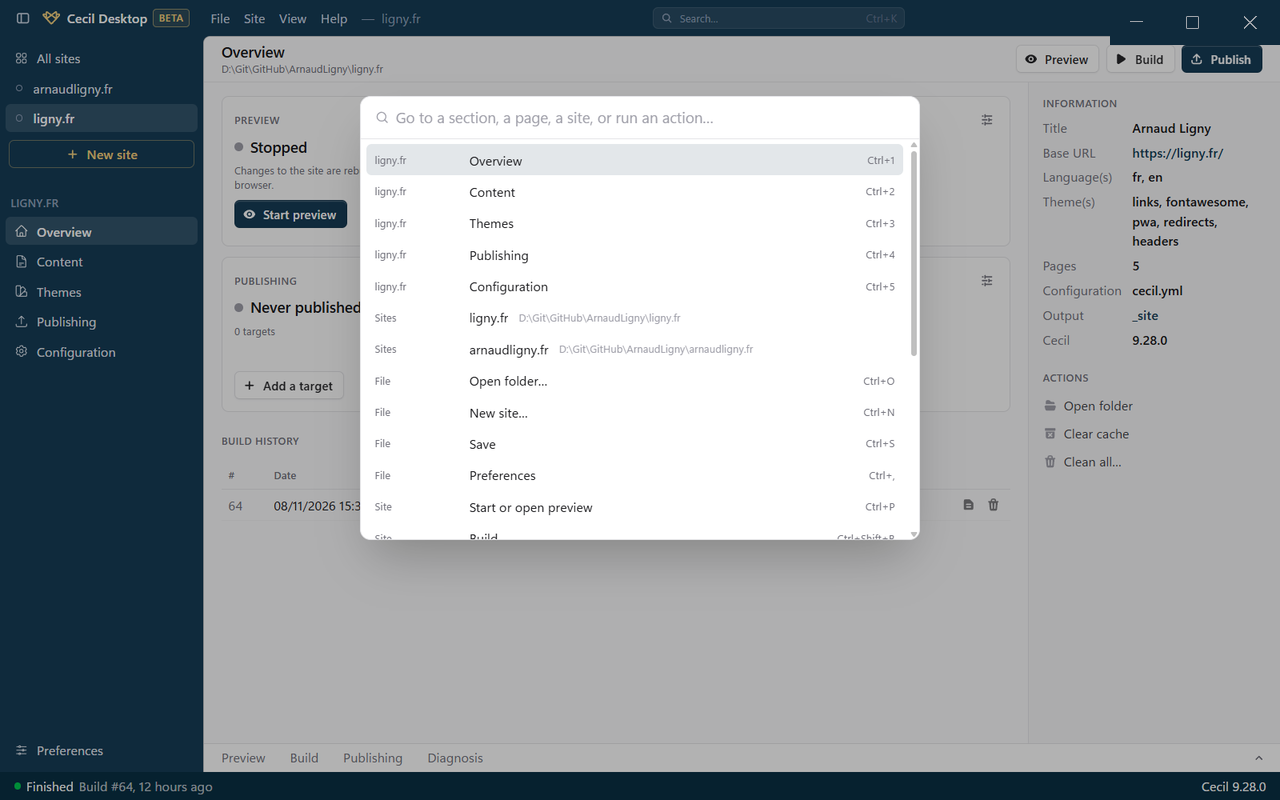
The command palette (Ctrl/⌘+K) gives access to your sites and to all the actions, from the keyboard.
Preview, build, publish
From any section of a site:
| Action | Shortcut | What it does |
|---|---|---|
| Preview | Ctrl/⌘+P | Starts the local server of Cecil and opens the site in your browser. Pages reload when you save a file. |
| Build | Ctrl/⌘+Shift+B | Builds the site into its output folder, with the logs and the problems in the Output panel. |
| Publish | Ctrl/⌘+Shift+P | Sends the site (its last build, or a new one) to its publishing target (Netlify, Vercel, GitHub Pages or AWS S3). |
To publish, add a target in the Publishing section of the site, with a hosting account set in Preferences (Ctrl/⌘+,).
Updates
On Windows, Cecil Desktop downloads its updates and installs them when you restart it. Each update embeds the latest version of Cecil. To check right away, use Help › Check for Updates….
On macOS, download the new version from the website and install it over the previous one.
Remove a site from the list
In the sidebar, right-click a site and choose Remove from list. Only the entry is removed: the files of the site stay on your disk.