
Build, preview, diagnosis
The Overview of a site (Ctrl/⌘+1) gathers its 4 tiles: Preview, Build, Publishing and Diagnosis, with the history of the builds below and the information about the site on the right.
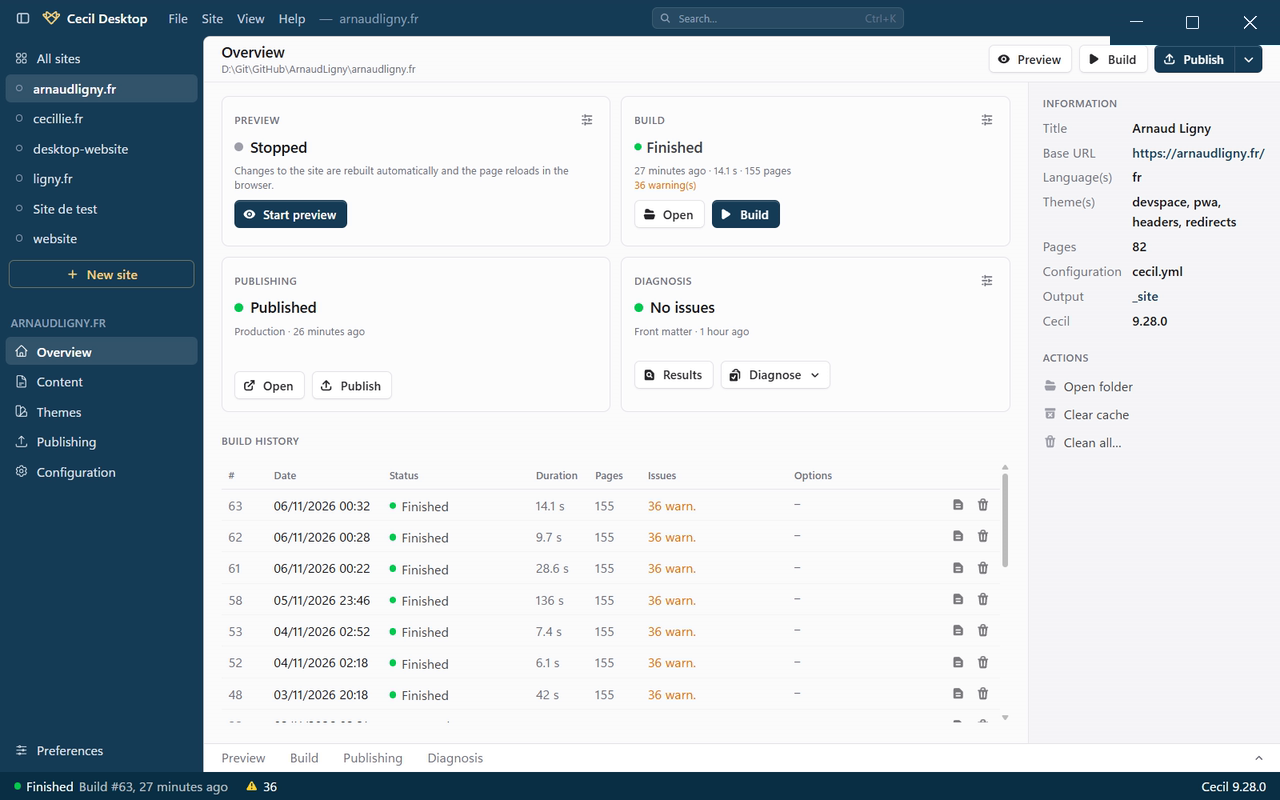
The toolbar, at the top of every screen of a site, gives access to the same actions: Preview, Build and Publish.
Preview
The preview runs the local server of Cecil: the site is built, served at http://127.0.0.1:<port>/, and opened in your browser. When you change a file, the site is rebuilt and the page reloads in the browser.
- Start: Start preview on the tile, the Preview button of the toolbar, or
Ctrl/⌘+P. The first build runs before the site is served (Starting (initial build)…). - Open: once the preview is online,
Ctrl/⌘+P(or Open on the tile) opens it in the browser again. - Stop: Stop on the tile, or Stop preview in the menu of the toolbar button.
Each site has its own server: several sites can be previewed at the same time, each one is shown in the status bar, at the bottom of the window, with a menu to open it, go to its site or stop it. The previews are stopped when you quit the app.
Preview options
The gear icon of the tile opens the options, kept for the next starts:
| Option | Description |
|---|---|
| Include drafts | Serves the pages marked as drafts too. |
| Incremental rebuild | Rebuilds only the changed pages. |
| Open the browser on start | Opens the site when the server is ready. |
| Detailed log | Logs each file and page processed, and the warnings. |
| Page | The ID of a single page to serve (all pages by default). |
| Port | Between 1024 and 65535; a free port is picked automatically by default. |
Build
A build generates the site into its output folder (_site by default), like cecil build.
- Start: Build on the tile, in the toolbar, or
Ctrl/⌘+Shift+B. - Follow: the tile shows the current step and its progress, also displayed in the taskbar (Windows) or the Dock (macOS). The log streams in the Output panel.
- Stop: Stop on the tile, the toolbar button (it becomes Stop build while the build runs), or Site › Stop build.
A site builds one at a time. When the build is done, the tile shows its status, duration, number of pages and problems, and Open opens the output folder. A system notification tells you when a build finishes or fails, even if you are on another screen (see Preferences to turn it off).
Build options
The gear icon of the tile opens the options, kept for the next builds:
| Option | Description |
|---|---|
| Include drafts | Builds the pages marked as drafts too. |
| Dry run | Runs the build without writing the files. |
| Optimization | Minifies and optimizes the assets: as configured, on or off. |
| Base URL | Overrides the baseurl of the configuration for this build (e.g. a staging URL). |
Problems
The warnings and errors of a build are grouped by message: a warning repeated fifty times shows up once, with its count. Click the number of problems (on the tile, in the history, in the Output panel or in the status bar) to list them, errors first.
History
Build history, below the tiles, lists the last 20 builds with their date, status, duration, number of pages, problems and options. Double-click a build (or click Log) to read its log; Delete removes a build and its log.
Diagnosis
The Diagnose menu of the Diagnosis tile runs the checks of Cecil:
| Diagnosis | What it checks |
|---|---|
| Site configuration | The configuration, the environment and the paths of the site. |
| Front matter | The front matter of the pages: syntax and values. |
| SEO Pro | Titles, descriptions and other SEO rules, page by page. |
| Links Pro | Broken internal links, and optionally external links. |
| Cache | The cache settings and the size of the cache folders. |
The SEO and Links diagnoses build the site first, without writing the files: their progress is shown on the tile and their log in the Output panel. Their options (gear icon) let you check external links (slower: one request per URL), include generated pages (sections, taxonomies, pagination…) and include suggestions.
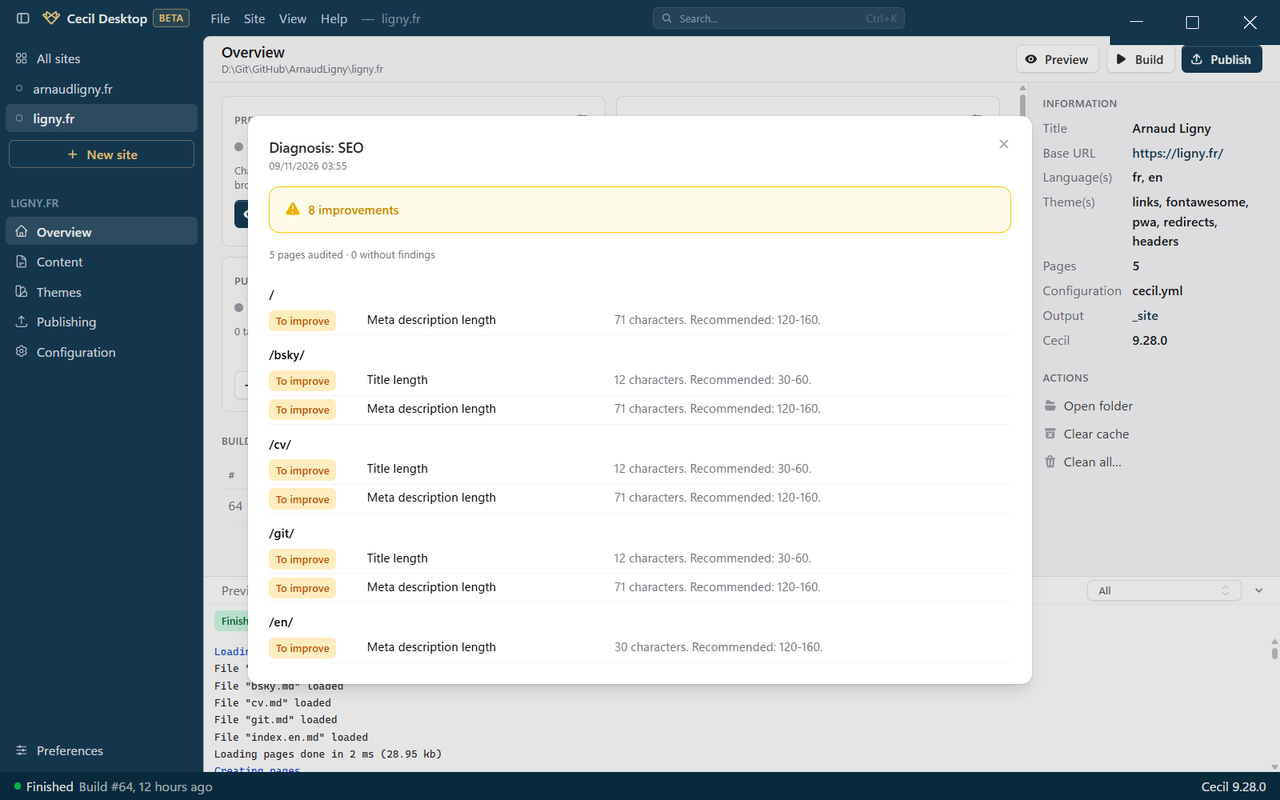
The results open when the diagnosis is done (Results to open them again), with the issues in red, the points to improve in amber and the suggestions in grey. In the results of the Front matter diagnosis, click the name of a file to open the page in the editor and fix it.
Output panel
The Output panel, at the bottom of the screens of a site (Ctrl/⌘+J), has 4 tabs: Preview, Build, Publishing and Diagnosis. It opens on the right tab when you start one of these actions, and keeps the last 500 lines.
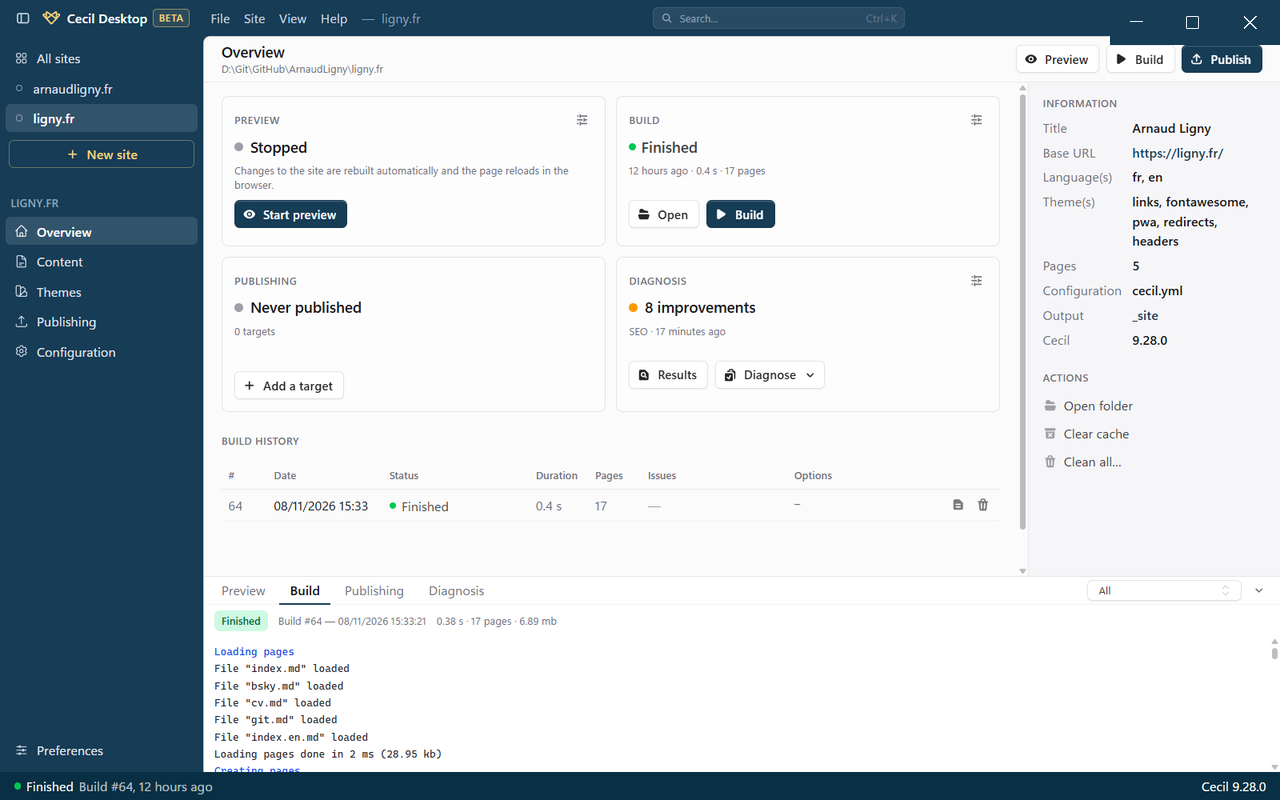
In the Build and Diagnosis tabs, Lines shown filters the log: all lines, steps and issues, warnings and errors, or errors only. The default filter is set in Preferences.
Clean the site
In the Information panel of the Overview:
- Clear cache deletes the cache of Cecil (
cecil cache:clear); - Clean all… deletes the output, temporary and cache folders of the site (
cecil clear), after confirmation.